
Create a stateful HTTP test using XG1.1 for the client and XG1.2 for the server, the same port pair illustrated in the RFC2544 guide. The client opens a TCP connection, sends GET /, checks the response, and closes the connection. The server returns HTTP 200 with a 1-byte body. This short example checks HTTP behavior across the test path at one new connection per second for 30 seconds.
A Traffic Pattern defines the HTTP exchange. A Testcase selects that pattern and its load schedule. The test service wizard creates two Test Hosts, two Test Ports, and a Test Project, with the client and server activities already bound. You do not need to place the components manually.
Before starting, connect XG1.1 and XG1.2 through the device under test, or directly together for a baseline. Confirm both links are ready and stop any previous test using these ports. This example uses one host per side in the same IPv4 subnet. For a routed path, use addresses and gateways appropriate to that network. Use unique model and service names if HTTPx-Example already exists.
Create The HTTP Traffic Pattern
- Open Models → Validation Models. In Browse, expand Test Traffic Patterns and select HTTPx Traffic.
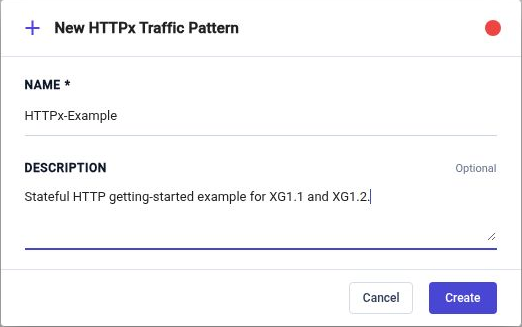
- Click Add. Enter HTTPx-Example as the name, optionally add a description, and click Create.
- In the new pattern, open Apply preset, select Connection Churn, and confirm with Apply preset. Start with a new empty pattern so the preset does not replace an existing workload you want to keep.
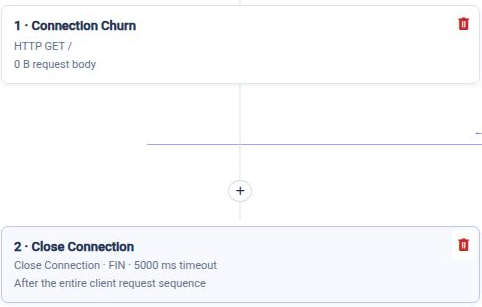
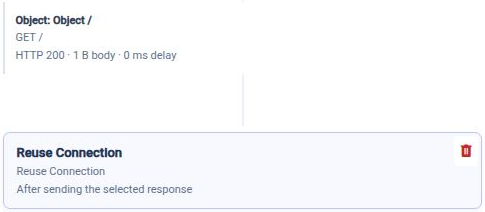
- Review the generated client and server actions. The client sends HTTP GET / with an empty request body, then uses Close Connection with FIN after the entire request sequence. The server's Object / matches GET / and returns HTTP 200, a 1 B body, and 0 ms delay. Its Reuse Connection action allows another request until the client closes.
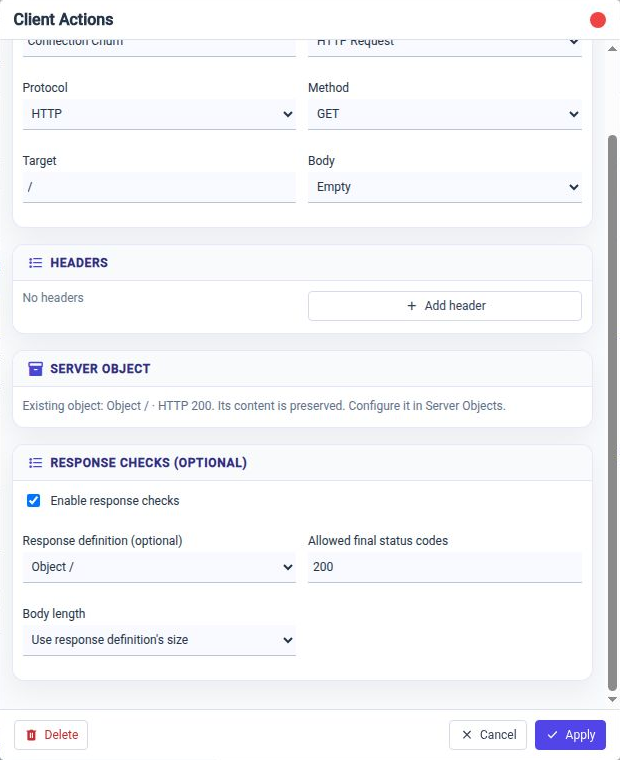
- Double-click the client Connection Churn action to open Client Actions. Keep Protocol: HTTP, Method: GET, Target: /, and Body: Empty. Enable response checks, select Object / as the response definition, keep Allowed final status codes: 200, and choose Use response definition's size for body length. Click Apply.
The pattern editor saves valid changes automatically. This example uses plain HTTP on service port 80. HTTPS requires a separate TLS configuration.
Create The Testcase And Load Schedule
- In Browse, select Testcases, click Add, enter HTTPx-Example, and click Create.
- Rename the initial activity to HTTP GET. Select HTTPx-Example in Traffic Pattern and leave the activity enabled.
- Select the Steady phase to open its settings. Use the following values and allow the valid changes to save before creating the service.
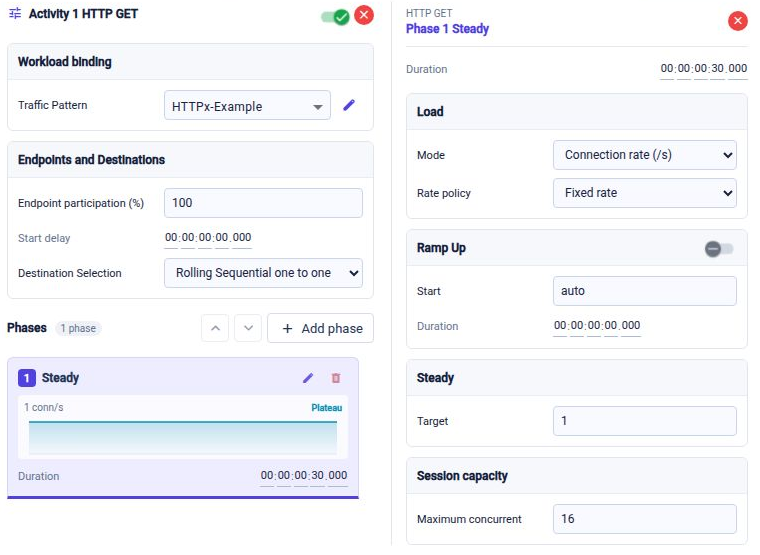
| Setting | Example value |
|---|---|
| Traffic Pattern | HTTPx-Example |
| Endpoint participation | 100% |
| Start delay | 0 |
| Destination selection | Rolling Sequential one to one |
| Phase | One Steady phase |
| Duration | 30 seconds |
| Load type | Connection rate (/s) |
| Rate policy | Fixed rate |
| Target | 1 connection/s |
| Maximum concurrent | 16 |
| Ramp off | 0 ms |
Connection rate controls new TCP connections. HTTP request rate also depends on how many requests the pattern sends on each connection. Here there is one request per connection, so the intended steady load is also one request per second. A pattern that reuses a connection for several requests has a different relationship between these rates.
Create And Attach The Test Service
- In the Testcase header, open Test Service and choose Create Test Service….
- On Ports and endpoints, configure the client and server below. Keep Host count: 1 on each side. For this directly connected or bridged example, leave both gateways empty. Confirm the activity binding shows TestClients → TestServers, HTTP GET · HTTPx-Example, and HTTP 80.
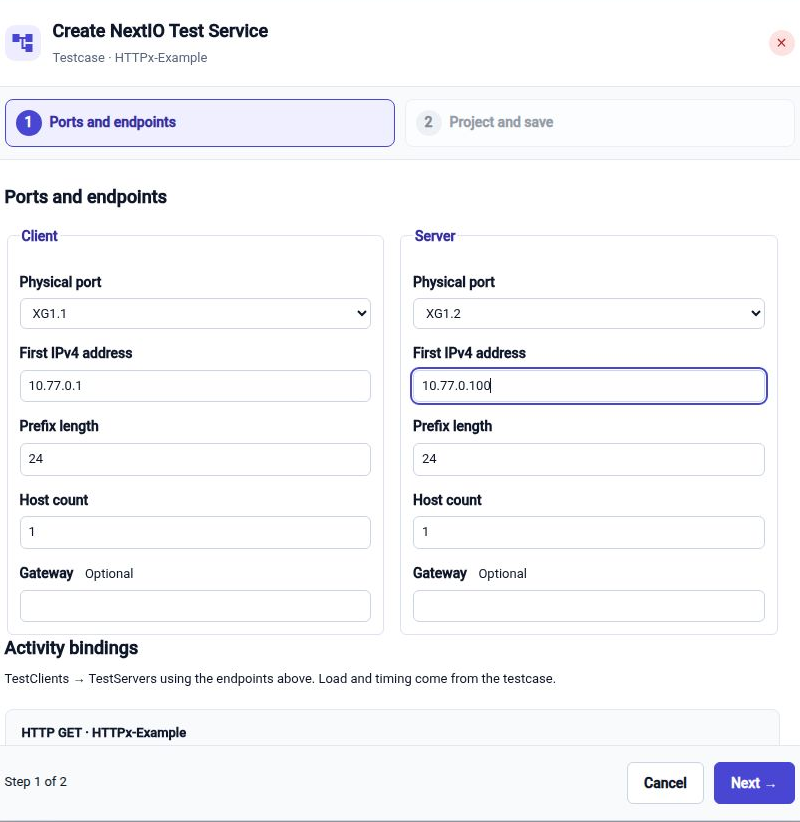
| Endpoint | Physical port | First IPv4 address | Prefix | Host count |
|---|---|---|---|---|
| Client | XG1.1 | 10.77.0.1 | 24 | 1 |
| Server | XG1.2 | 10.77.0.100 | 24 | 1 |
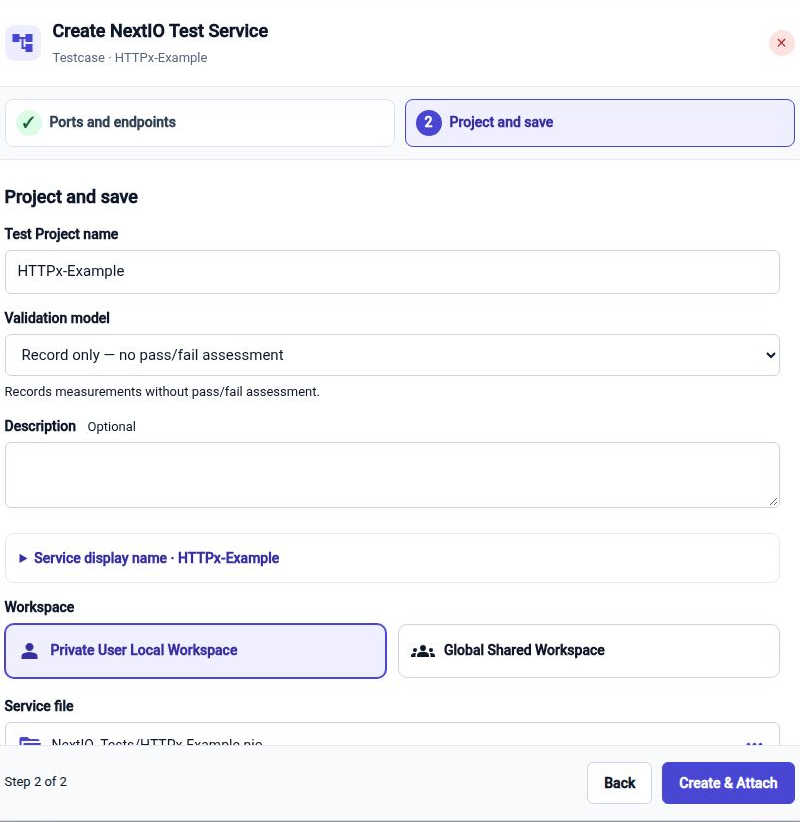
- Click Next. On Project and save, use HTTPx-Example as the Test Project name. Select Record only — no pass/fail assessment for this baseline. Choose Private User Local Workspace and review the service file NextIO_Tests/HTTPx-Example.nio. Click Create & Attach. Creating the saved design does not start traffic.
Open The Diagram And Start
- In the associated Test Service row, choose Open. Confirm the generated diagram contains TestClients connected to ClientPort, TestServers connected to ServerPort, and Test_Project_1. The two Test Ports use XG1.1 and XG1.2 respectively. Test Project has no packet connections.
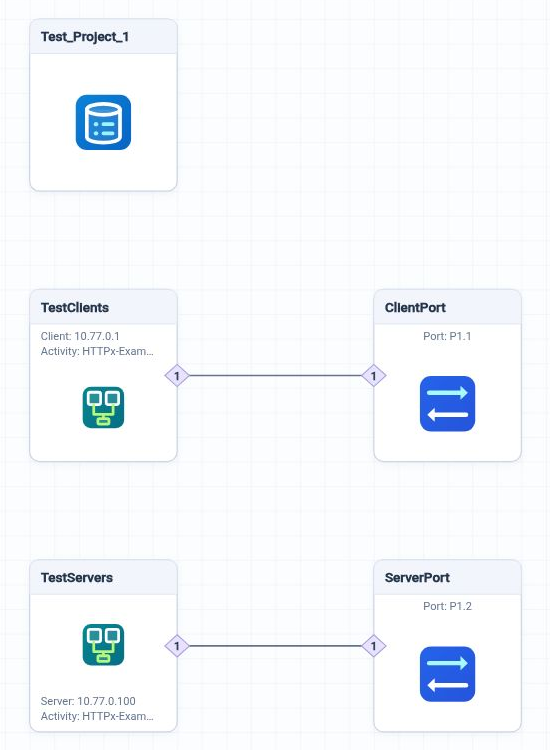
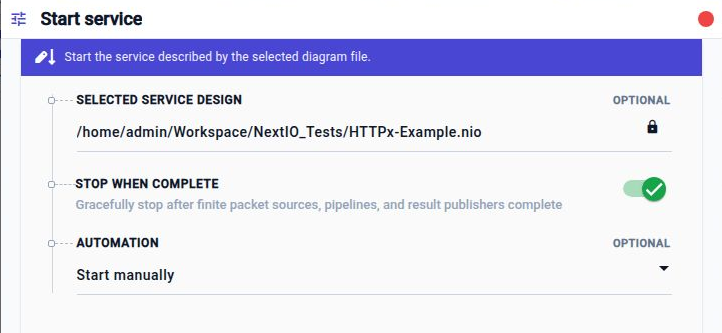
- Click Start in the diagram toolbar. Keep the saved HTTPx-Example.nio design selected, Stop when complete enabled, and Automation: Start manually.
- Click Start service. Return to the diagram and click View Service….
Review Connections And HTTP Results
- Open Test Overview in the service catalog. Review the runtime and status, connection rate, packet rate, application goodput, and Test Port Statistics. Confirm the physical links are up and check receive/transmit errors alongside the application results.
- Select TestClients in the component catalog. Review Activities · client and client · HTTP GET. Check attempted, established, closed, and failed connections, then HTTP requests, responses, failures, and received body bytes. Select TestServers to review the corresponding server activity counters.
- Allow the 30-second phase to finish. With Stop when complete enabled, the service stops automatically after completion. Confirm Status: Completed, Load Phase: Completed, and no active connections before comparing the final counts.
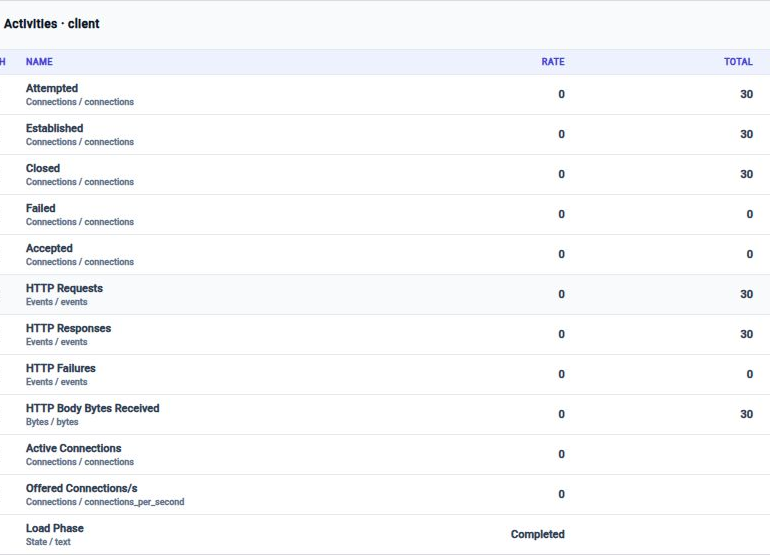
The illustrated run produced the following client totals:
| Counter | Observed result |
|---|---|
| Attempted / established / closed connections | 30 / 30 / 30 |
| Failed connections | 0 |
| HTTP requests / responses | 30 / 30 |
| HTTP failures | 0 |
| HTTP body bytes received | 30 |
| Active connections after completion | 0 |
The server also recorded 30 requests and 30 responses with zero HTTP failures. These results demonstrate a small functional HTTP exchange across this test path; they do not establish maximum capacity. Increase load only after the baseline works, and compare runs with equivalent pattern, host, and network settings.
Record only records measurements without an overall pass/fail assessment. The response checks enabled in step 5 still check the HTTP responses. For a formal acceptance result, select an appropriate rule in Validation and Report. Use the project's result location and recording settings to locate the saved TestDB for later review.
Troubleshooting
| Symptom | What to check |
|---|---|
| No established connections | Both physical links, selected ports, client/server addressing, ARP, gateways for routed paths, and whether the device under test forwards TCP port 80. |
| Connections succeed but HTTP fails | The client method and target must match the server object. Review allowed status codes, expected body length, and the HTTP failure counters. |
| Unexpected request rate | Check the connection-rate phase, activity participation, and number of requests per connection. Reusing connections changes the relationship between connection and request rates. |
| No overall pass/fail result | This example selects Record only. Generate a report from the finalized TestDB with a Validation Rule selected when an acceptance assessment is required. |
See Test Hosts for activity and endpoint settings, Test Port for physical port bindings, and Introduction for the overall validation architecture.
Continue with Validation and Report to create a rule set, assess the finalized recording, and open the generated report.