
Use Validation Rules to define acceptance criteria, then apply a saved rule set when generating a report from a completed test recording. This guide continues from the RFC2544 and HTTPx Getting Started examples.
The sequence is create Validation Rules → open the finalized TestDB → Generate Report → select the rule → open the report. Report generation assesses the measurements already in the TestDB. You can create or revise rules after a test without rerunning traffic. The source TestDB remains unchanged; the report job uses a snapshot of the selected rule definition.
A completed traffic test, a completed report-generation job, and a passing validation verdict are separate outcomes. Always review the report's actual assessment and any missing evidence.
Create Validation Rules
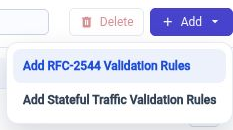
- Open Models → Validation Models. In Browse, select Validation Rules, then open Add. Choose the rule type for the recorded workload.
| Add menu choice | Use with | Categories |
|---|---|---|
| Add RFC-2544 Validation Rules | The RFC2544 throughput example and other RFC2544 benchmark recordings. | Test Execution and RFC2544 Benchmark. |
| Add Stateful Traffic Validation Rules | The HTTPx example and other stateful traffic recordings. | Test Execution and the offered stateful/network categories, excluding RFC2544 Benchmark. Enable checks applicable to the recorded workload. |
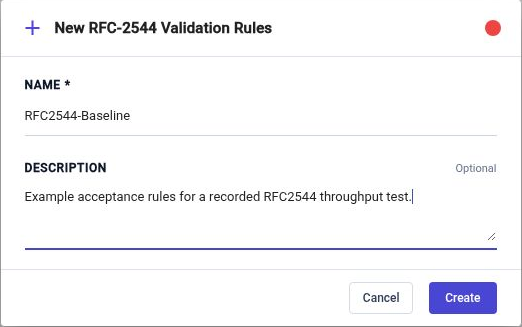
- Enter a descriptive Name, such as RFC2544-Baseline, and optionally describe the acceptance target in Description. Click Create. For the HTTPx example, use a distinct name such as HTTPx-Baseline with the Stateful Traffic rule type. Use a unique name if one already exists.
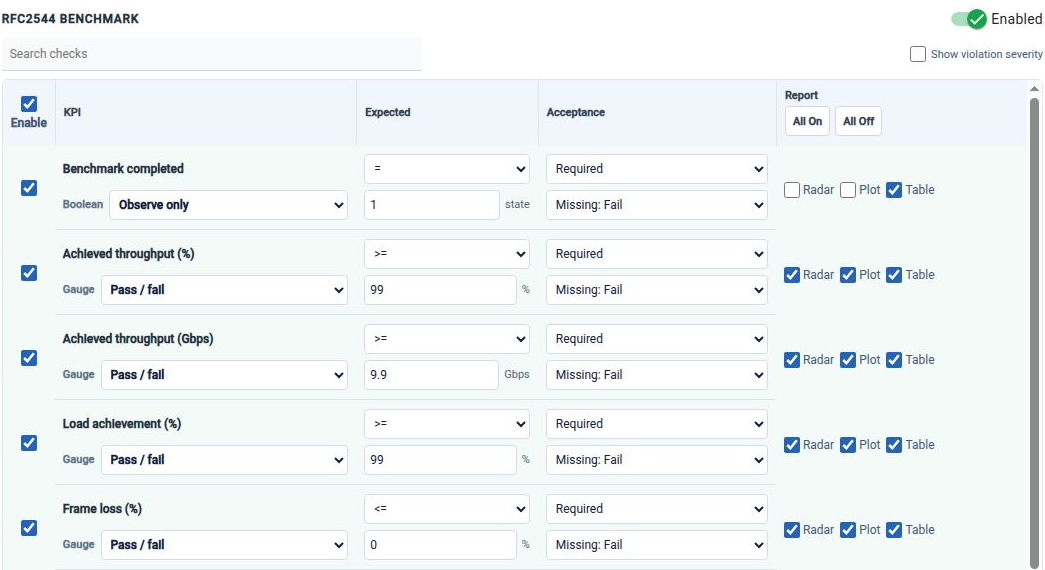
- In KPI Rules, select each relevant category. Review the category's Enabled control and the Enable checkbox for each check. Configure the expected values, acceptance policy, missing-data behavior, grading, and report views. Valid rule changes save automatically; allow saving to finish before opening the report workflow.
| Control | What to decide |
|---|---|
| Category Enabled / check Enable | Whether the category and individual KPI participate in assessment. Disabling a category retains its check settings. |
| Expected | Comparison and threshold, or range, in the displayed unit. Match the target to the port speed, frame sizes, workload, and test plan. |
| Acceptance | Required, Advisory, or Informational. Required failures affect acceptance; advisory failures can produce warnings. Informational checks do not independently fail the test. |
| Missing data | Fail, Warn, or Unavailable when the recording cannot supply a usable measurement. Missing evidence is not a passing zero. |
| Grading | Observe only, Pass / fail, Higher is better, or Lower is better. Directional grading uses explicit values for scores 100 and 0. A score does not override acceptance. |
| Report | Independent Radar, Plot, and Table choices. These control presentation; turning a view off does not disable its check. Radar requires grading. |
New RFC-2544 rule sets enable their Test Execution and RFC2544 Benchmark checks. Review every check before using the preset: a 9.9 Gbps threshold is not appropriate for every interface or every frame size, and a latency check needs recorded latency measurements. For HTTPx, review the applicable connection, HTTP, and network checks rather than using benchmark thresholds. Traffic Pattern response checks still define the HTTP exchange's own expected status and body behavior; Validation Rules provide the separate report-time assessment of recorded metrics.
Open The Recorded Test Result
-
In File Explorer, locate the saved test design and its Test_Results folder. Open the intended run's test.testdb. Each run has its own device-local timestamp directory, for example:
NextIO_Tests/Test_Results/<device-local timestamp>/test.testdbConfirm the project name, run, execution status, and recording completeness. Use a finalized recording; report generation does not read a live service.
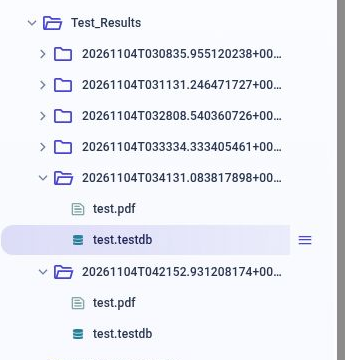
- In the recorded result header, click Generate Report.
Apply The Rule And Generate The Report
- In Test Report, confirm the TestDB path. Open Validation Rule and select the saved rule, for example RFC2544-Baseline. Select the Stateful Traffic rule you created when reporting the HTTPx recording. Leaving None skips validation; it does not produce a passing assessment.
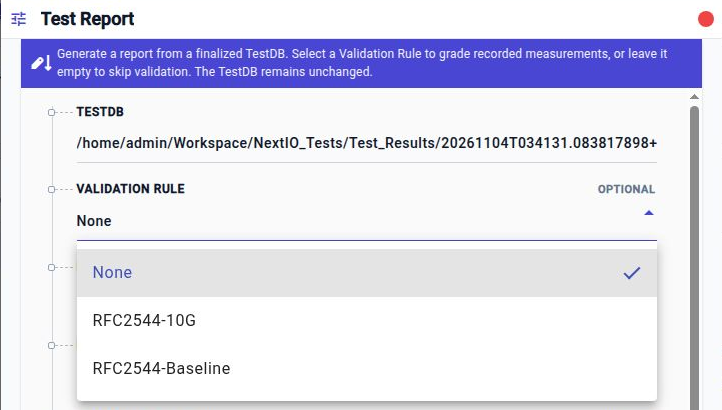

- Review Report Title, Project Name, External Project ID, Report ID, Description, and Report Notes. These fields initially use the recorded metadata where available and can be edited for this report. In Output Formats, keep PDF or select another offered format, such as HTML, as needed.
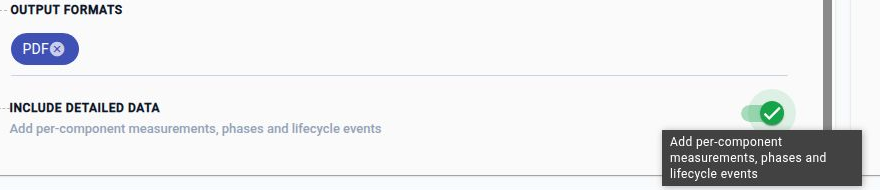
- If you need more evidence in the report, enable Include detailed data. It adds per-component measurements, phases, and lifecycle events. Leave it off for a shorter report. Detailed output can substantially increase the report size and page count; it cannot restore measurements absent from the recording.
- Click Generate Report and wait for the workflow to complete. The job freezes the selected rule definition, evaluates the recorded measurements, and renders the requested outputs. Use View Execution Logs if you need to investigate generation problems.

Open And Review The Report
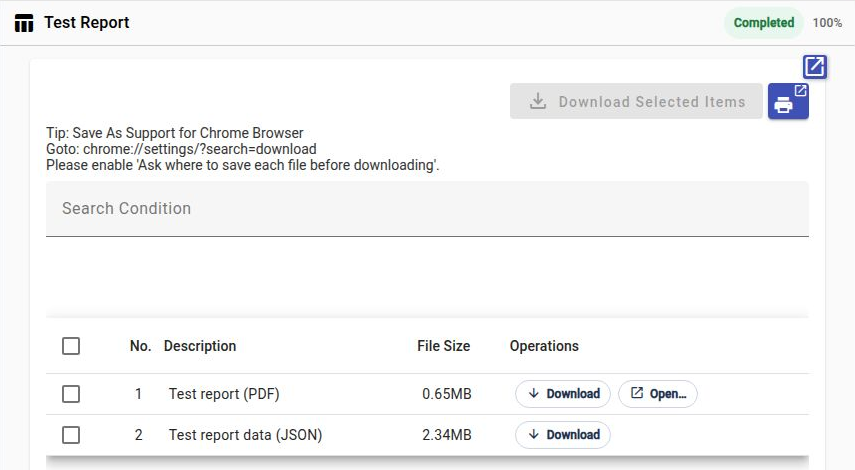
- When the workflow shows Completed, find Test report (PDF) in the output list and click Open…. Use Download to save the report. The list also provides Test report data (JSON) for the generated report data.
- Review the report's test identity, execution outcome, selected Validation Rule, assessment verdict, and individual KPI results. Inspect failed or unavailable checks and the corresponding measurements before accepting the result. Compare scores and charts with their configured thresholds and data coverage.
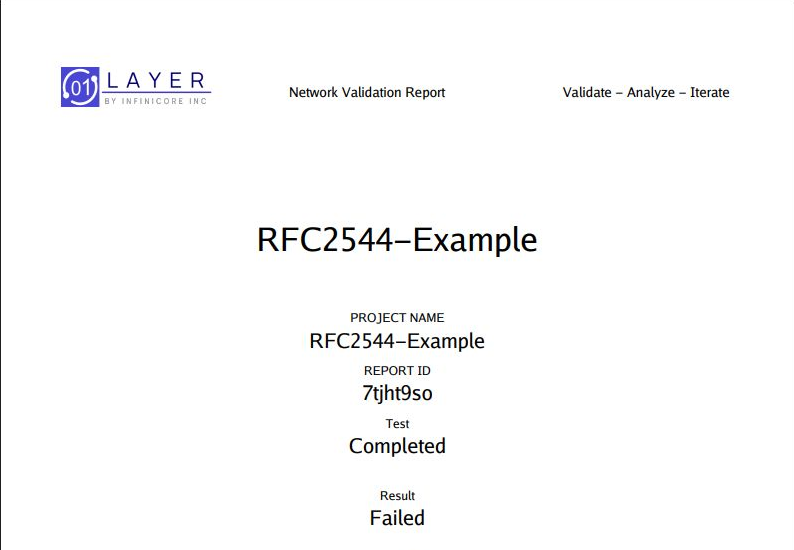
The illustrated report uses the saved RFC2544-Baseline preset against an existing RFC2544 recording. Its Failed result is an assessment outcome, not a report-generation failure. For example, the recording's small-frame throughput is below the preset's 99% target. Review all failed checks and missing-data policies; do not lower an agreed acceptance threshold merely to obtain a pass.
For a revised assessment, save the intended rule changes and generate another report from the same finalized TestDB. Each report job uses its selected rule snapshot without rewriting the recording. Download a report you need to retain before regenerating, since the published report files beside the TestDB may be replaced.
Troubleshooting
| Symptom | What to check |
|---|---|
| The saved rule is missing from the selector. | Confirm its changes have saved and resolve any rule-set validation issues before reopening the report workflow. |
| The report contains no validation assessment. | Select a Validation Rule instead of None and regenerate. Recording-only execution does not prevent a later report-time assessment. |
| Execution completed but validation failed. | Review required checks, thresholds and units, frame sizes, missing-data policy, and the actual recorded measurements. |
| A measurement is unavailable. | Confirm the recording contains the required component, entity, and metric. Neither grading nor Include detailed data creates missing evidence. |
| A score or chart is missing. | Review the check's grading mode and Radar/Plot/Table choices as well as measurement availability. |
| The report is too long. | Regenerate without Include detailed data when a summary is sufficient. |
See Test Project for recording and result locations, or return to Getting Started Guide to create another test.