
TestPort attaches a validation workload to an exclusive physical traffic port. It supplies the port identity and measurements; the connected Test Hosts, Stateless Packet Generator, or RFC2544 Benchmark defines what traffic the test sends and receives.
Return to Validation Tools for the complete component list and Validation Models for reusable test definitions.
Connections And Ownership
Add one TestPort for each physical interface used by the validation design, and include exactly one Test Project in the service. The physical interface must not already be reserved by a conflicting service. Adding the component does not start traffic.
| Workload | Connection | Important constraint |
|---|---|---|
| Test Hosts | Network ↔ TestPort Q0 | The current Test Hosts path uses one queue. |
| Stateless Packet Generator | Wire ↔ TestPort Q0 | The generator also requires its separate retained HostPool connection. |
| RFC2544 Benchmark | Benchmark Port A or Port B ↔ dedicated TestPort | The benchmark owns its port workers and queues. Do not attach another workload to the same TestPort. |
The numbered bidirectional pads represent RX/TX queue pairs, rather than different physical interfaces. Where a workload supports multiple queues, connect corresponding queue numbers consistently. Changing the selected physical interface belongs in TestPort's Port setting.
Main Settings
| Setting | How to use it | Initial value |
|---|---|---|
| Port | Select the intended physical traffic interface from the appliance inventory. | Required; not selected. |
| Queue Count | Match the workload's supported RX/TX queue layout. The descriptor allows 1–16 queue pairs; the NIC and workload must support the requested count. | 1 |
| MTU | Set the maximum Ethernet frame size for the path. This is a capacity limit, not the generator's chosen packet size. The editor range is 512–9216 bytes. | 1522 bytes |
| Packet Pool | Select the packet storage used by the port path. | System |
| Packet Pool Size (MB) | Configure storage when the selected pool mode exposes this setting. | 16 MB |
| Compute | Allocate resources through the shared allocator where applicable. RFC2544 manages its benchmark worker budget through its own CPU Allocator. | Editor-supplied allocation. |
Use the properties panel for settings available on the installed release. Increasing queues or memory does not establish a higher supported traffic rate without confirming workload, NIC, and processing capacity.
Configure A Test Hosts Attachment
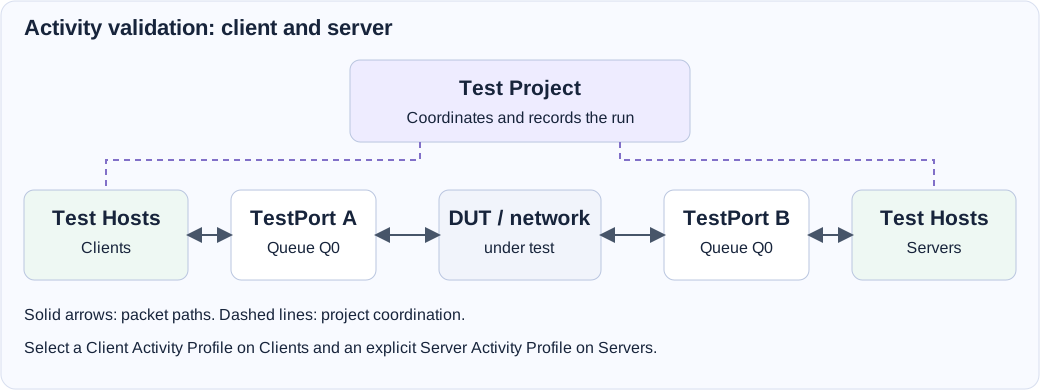
- Add one Test Project, a Test Hosts component, and a TestPort. For a paired client/server design, add a second host group and TestPort for the other side.
- Name the ports clearly, such as
ClientPortandServerPort, and select distinct physical interfaces. Confirm their cabling to the network under test. - Leave Queue Count at one for Test Hosts. Set MTU to accommodate the intended traffic and every device along the path.
- Connect each Test Hosts Network pad to the corresponding TestPort Q0. Configure addressing, profiles, and destinations in Test Hosts.
- Save the design and use Verify. Resolve port ownership and topology errors before starting.
- Start through the normal service workflow. Confirm local link readiness, host preparation, and traffic on the expected physical interfaces.
- Review port and workload measurements together, then stop or allow the finite test to complete. Inspect the recorded result under Test Project.
See Test Hosts for a complete client/server setup and RFC2544 Benchmark for benchmark-specific port ownership.
Read Port Measurements
Test Project coordinates baseline, periodic, and final TestPort samples. The service view displays the resulting observations; opening the view does not reset counters or initiate a separate hardware measurement cycle.
Review RX/TX packet and byte counts, link state, errors, missed packets, packet-buffer allocation failures, and the driver's extended statistics where available. Compare changes within the run's measurement interval, rather than assuming a displayed cumulative device total begins at zero.
Hardware counters have driver-specific meanings. An absent counter, a failed optional statistics read, or an unsupported zero must not be interpreted as proof of error-free operation. Emulated NIC measurements also do not establish physical PHY, FEC, or wire-level behavior. Keep these observations distinct from a generator's offered packets or an application's completed requests.
Troubleshooting
| Symptom | What to check |
|---|---|
| The selected port is unavailable. | Physical port identity and reservations held by other services. |
| Link readiness fails. | Cable, transceiver, peer port configuration, and the selected interface. |
| The diagram rejects a queue connection. | Matching queue numbers, workload queue support, and the required direct topology. |
| Small traffic works but larger frames fail. | TestPort MTU, NIC support, and the MTU of the complete forwarding path. |
| Workload counts exceed observed wire traffic. | Output drops, allocation failures, NIC counters, and whether the workload count represents offered traffic. |
| Some statistics are unavailable. | Driver capability, counter provenance, and optional-read errors; do not replace missing observations with zero. |
Field Reference
TestPort field reference and initial values
Initial values describe a newly added component. Saved designs keep their configured values. Dependent fields appear when their controlling option is selected.
| Setting | Purpose | Initial value |
|---|---|---|
| Port | Exclusive bidirectional test port | Required |
| Queue Count | Number of RX/TX queue pairs; connect each queue to the matching TCP application queue | 1 |
| MTU | Maximum Ethernet frame size | 1522 |
| Packet Pool | Packet pool selection | system |
| Packet Pool Size (MB) | Packet storage | 16 |
| Compute Resources | Allocate compute resource for the service | 1 configured item |